
A MacBook USB-C charger is lightweight, but its components (connector, cable, power adapter) do not handle the mechanical stresses of a moving box well. Being crushed under office equipment, having the cable sharply bent, or putting prolonged pressure on the connector can cause damage that is not always visible to the naked eye. Knowing what to inspect after transport, and when to replace the entire unit, helps prevent you from plugging a faulty accessory into a MacBook.
Weak points in a USB-C cable and power adapter: what breaks first
The USB-C connector is only a few millimeters wide. Its internal row of pins handles both power delivery and data transmission. Even moderate lateral pressure can deform the metal housing or bend the pins without leaving any visible sign on the outer casing.
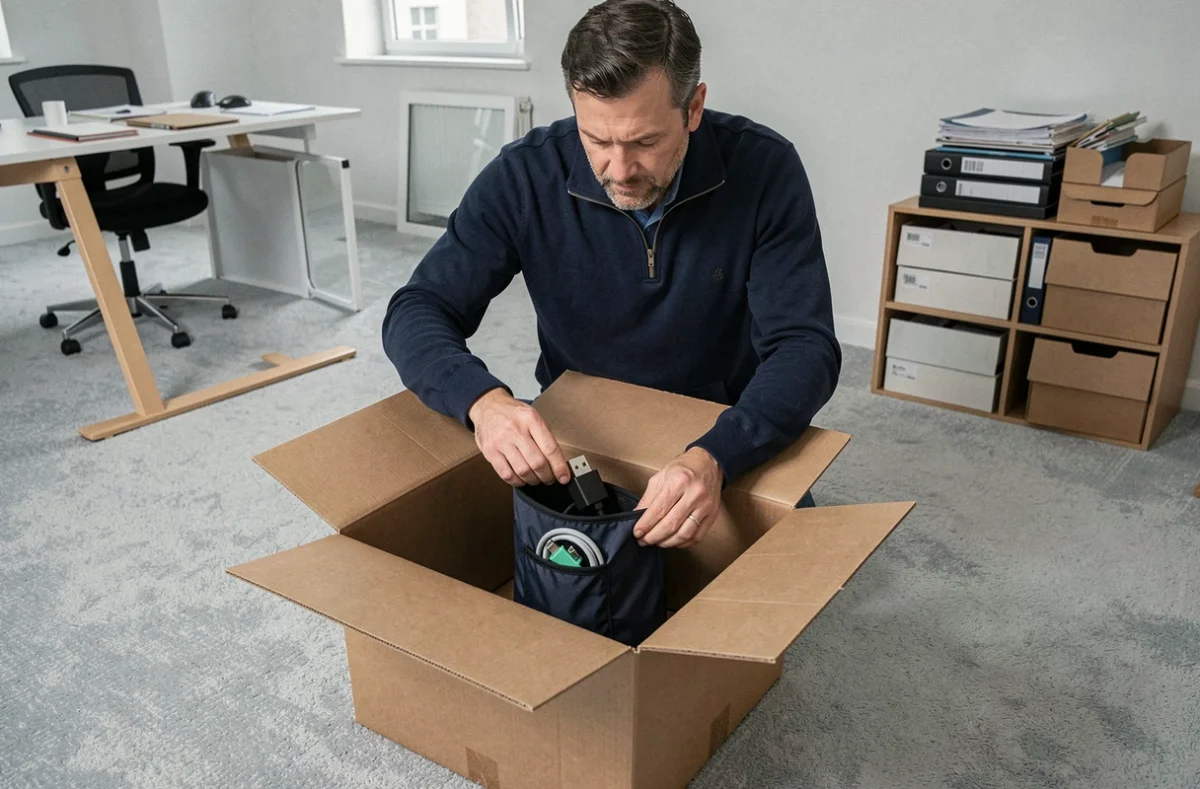
Most breaks occur where the cable meets the connector. This is where the flexible casing joins the rigid part. During a move, a cable tightly wrapped around the power adapter and then wedged into a box is subjected to exactly this kind of stress: forced bending at a sharp angle, sustained for hours during transport.
The power adapter itself is more resistant to impacts thanks to its plastic casing. However, the retractable prongs on the plug can jam or bend if the adapter is compressed against a hard object. Apple recommends unplugging the adapter from the outlet and disconnecting the cable from the adapter before storing them, which reduces the number of points exposed to mechanical stress.
A complete guide to protecting a MacBook USB-C charger during an office move covers these vulnerable points and the related preventive measures.
Post-transport inspection: visible defects and replacement decisions
Apple advises against using a damaged adapter or cable. The challenge is assessing the damage: some defects warrant immediate replacement, while others may allow temporary use under close supervision. The table below lists the most common issues found after a move.
| Area inspected | What you find after unpacking | Associated risk | Recommended action |
|---|---|---|---|
| USB-C connector | Bent or blackened pins | Short circuit, intermittent charging | Replace the cable |
| USB-C connector | Slightly dented metal housing | Poor contact with the MacBook port | Replace the cable |
| Cable-connector junction | Split or peeling casing | Exposed internal wires, electrical hazard | Replace the cable |
| Cable (main section) | Pronounced bend with a white mark | Weakened conductor, eventual breakage | Monitor; replace if charging is unstable |
| Power adapter | Cracked casing or jammed plug prong | Compromised insulation, possible overheating | Replace the adapter |
| Power adapter | No visible damage | Low | Use as normal |
A deformed connector cannot be repaired: the precision machining of a USB-C plug rules out reshaping it by hand. Forcing a bent connector into the MacBook port could also damage the computer’s port, turning a cable replacement into a costly repair.
When the cable is packed while still connected to the adapter
When a mover packs the charger without disconnecting the cable from the adapter, the strain is applied directly to the connector on the adapter side. Wrapped around the adapter or folded accordion-style in bubble wrap, the cable puts constant tension on this junction. After unpacking, check that the connector still fits into the adapter with a firm click. A connector that moves inside the adapter port indicates an abnormal amount of play.
If the cable was wound very tightly, unwind it completely and lay it flat. A casing that retains a rigid spiral shape instead of naturally returning to a gentle curve has been subjected to prolonged mechanical stress. This does not mean it needs to be replaced immediately, but it is a sign of material fatigue.
How to pack a MacBook USB-C charger safely
Safe packing comes down to three principles: separate the components, avoid sharp bends, and keep the charger away from heavy or metal office items.
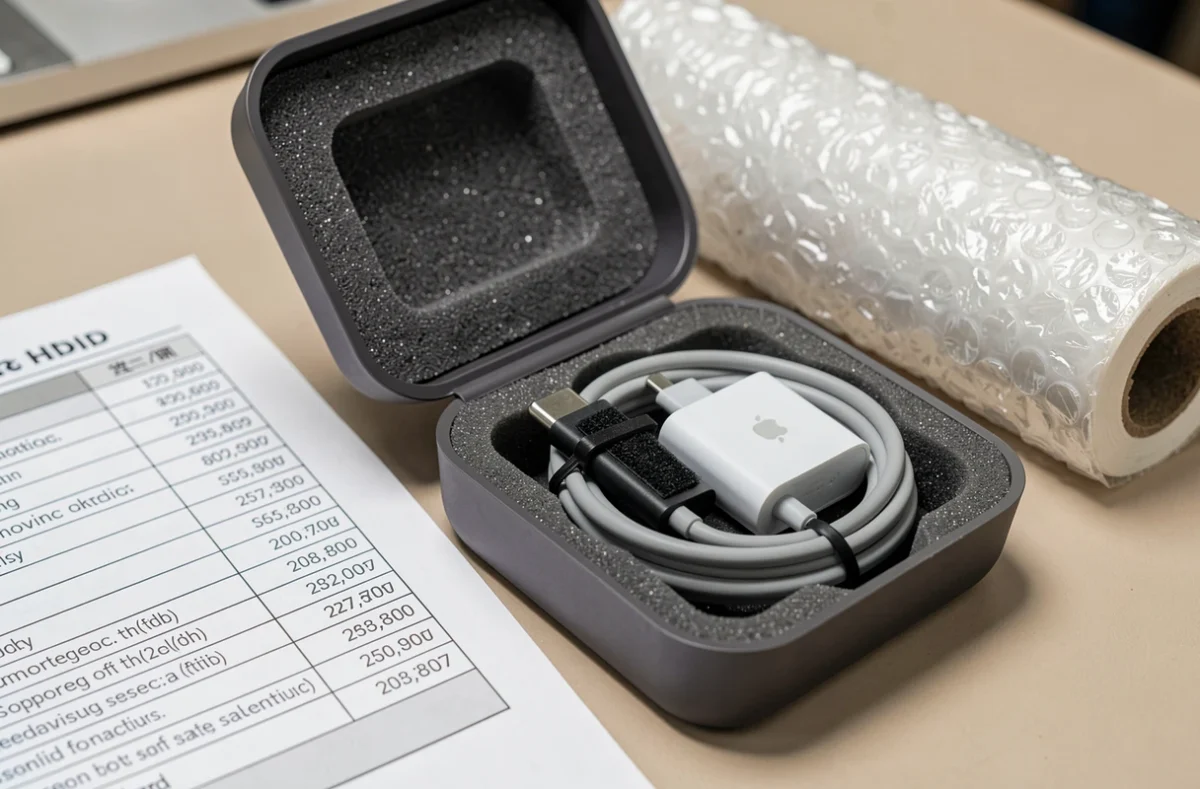
- Disconnect the cable from the adapter and MacBook before handling it. Store each item in its own pouch or bag to prevent connectors from rubbing against hard surfaces.
- Coil the cable into wide loops (at least the diameter of an open hand) rather than wrapping it tightly around the adapter. Too small a bend radius can damage the internal conductors in the USB-C cable.
- Place the power adapter in a small box or rigid pouch, with the plug prongs retracted. Cushion it with crumpled paper to absorb impacts.
- Do not pack the charger at the bottom of a box containing heavy office items (staplers, monitor stands, binders). Place it at the top of the box or in a separate, labeled container.
For moves handled by a moving company, written instructions asking movers not to pack connected cables can prevent the cable-from-being-wound-under-tension scenario described above.
MacBook USB-C port: what to check after connecting a suspect charger
Connecting a damaged charger can affect the MacBook port. macOS displays a message in the battery menu when charging is unusually slow or unstable. A “slow charger” message after connecting a cable that was transported indicates a cable problem, not a battery problem.
After plugging it in for the first time at the new office, three quick checks are all you need:
- The connector fits into the port without force and without noticeable side-to-side movement. Apple advises never forcing a connector into a port.
- The MacBook shows that it is charging normally within the first two minutes. Charging that starts and then stops intermittently points to a loose connection in the cable.
- The power adapter does not become excessively hot to the touch after ten minutes of charging. A warm casing is normal; a hot one is not.
If any of these checks fail, unplug it immediately and do not try again with the same cable. Testing with another USB-C cable can confirm that the MacBook port was not damaged by the first connection.
A USB-C charger costs a fraction of what it takes to repair a MacBook port. When doubts remain after a visual inspection and charging test, replacing the cable or adapter is the least risky choice for your computer.